How to Convert Unicode (Mangal) to Kruti Dev 010: A Practical Guide
Follow a worked Mangal-to-Kruti Dev 010 example, fix matras and reph, and prepare checked Hindi text for Word, Excel and PageMaker.
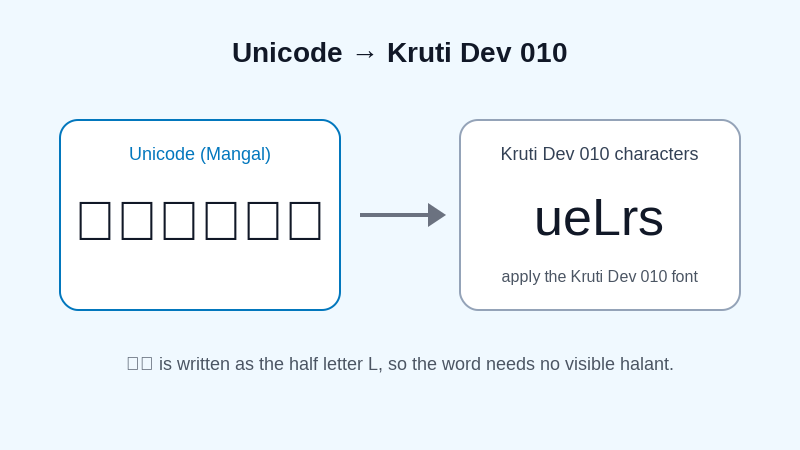
You have a Hindi passage that reads correctly in Mangal, but the recipient asks for Kruti Dev 010. Selecting a different font is not enough: the two systems store different characters. This guide follows the complete handoff, from identifying the source to checking the finished document. It is a practical editing workflow, with examples you can compare, rather than another conversion box.
Keep your original Unicode file. Make a separate working copy for the legacy version, because a Kruti Dev document is harder to search, share across devices and edit without the matching font. Only create that version when the recipient actually needs it. If they accept Unicode, sending a checked Unicode document avoids an unnecessary conversion.
Before you start: identify the text and the required font
Mangal is a font that displays Unicode Devanagari. Hindi copied from a modern website or document often already uses Unicode, even when its appearance differs from Mangal. Kruti Dev 010 instead assigns Devanagari shapes to characters such as d, k and f. The text भारत, for example, becomes Hkkjr in the stored legacy representation.
Paste a short source sentence into an ordinary text editor. If it still reads as Hindi with a Unicode font, use the Unicode-to-Kruti-Dev direction. If it becomes Latin letters, inspect the original document’s font name before proceeding. A different legacy family, such as Chanakya, needs its own mapping; a Kruti Dev converter is not a universal decoder.
Ask the recipient which exact font and file format they expect. A request for a Hindi document is not automatically a request for Kruti Dev. For font-specific background and a ready-to-use conversion box, see the Mangal to Kruti Dev converter.
Numbered walkthrough: convert, paste and verify
1. Prepare a short Unicode sample
Start with भारत एक महान देश है। rather than a whole document. Copy it from the original and keep a second copy for comparison. Remove accidental line breaks introduced by a PDF extraction, but preserve intentional paragraph breaks. Check the source for missing letters before conversion: a converter cannot reconstruct a word damaged by OCR.
For your own document, include one proper name, one number and one word with a complex cluster in the trial paragraph. These are more useful checks than a paragraph containing only simple consonants. Do not include confidential material merely to test whether the converter works; a neutral sample is sufficient.
2. Open the 010 tool and confirm the direction
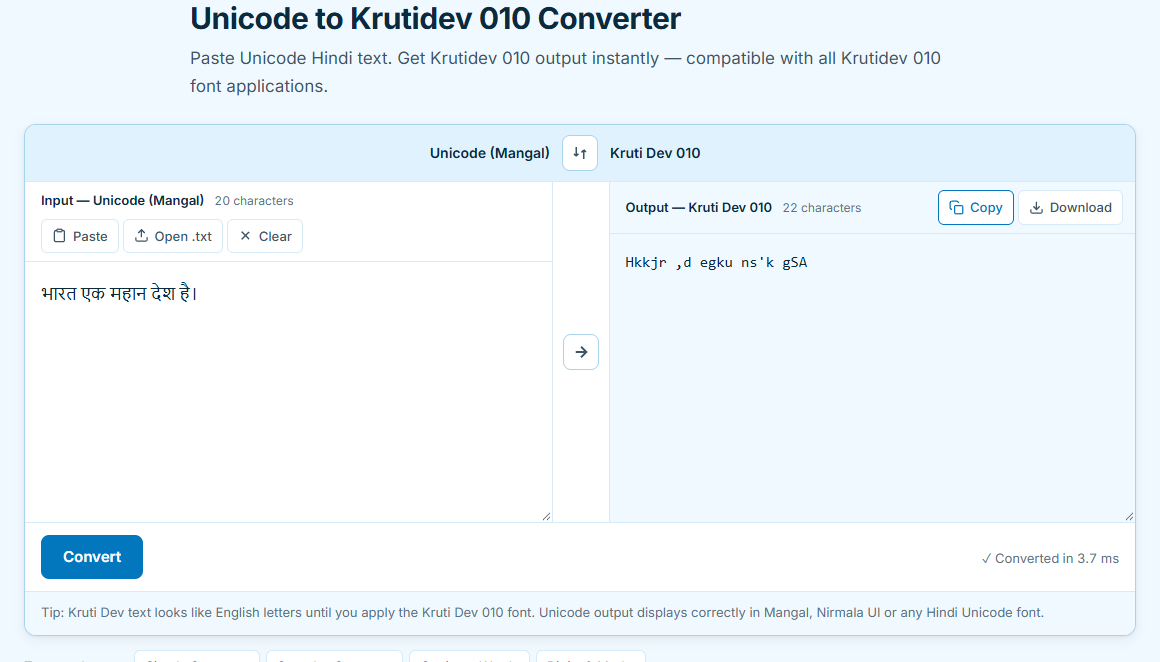
Go to the Unicode to Kruti Dev 010 converter. Check that the source label says Unicode (Mangal) and the destination says Kruti Dev 010. The swap button reverses those roles. If you return to an open tab, check again: a remembered working draft may use the other direction.
Paste the sample into the input box. The output updates as you type; the Convert button also runs the conversion. For a saved plain-text passage, use Open .txt. This upload control does not extract text from DOCX, PDF or image files.
3. Inspect the output and any notice
The sample begins with Hkkjr. Seeing Latin characters here is expected. They are the characters that Kruti Dev will later draw as Hindi glyphs. Read any notice under the converter before copying: mixed English text or an unexpected source encoding may need separate treatment.
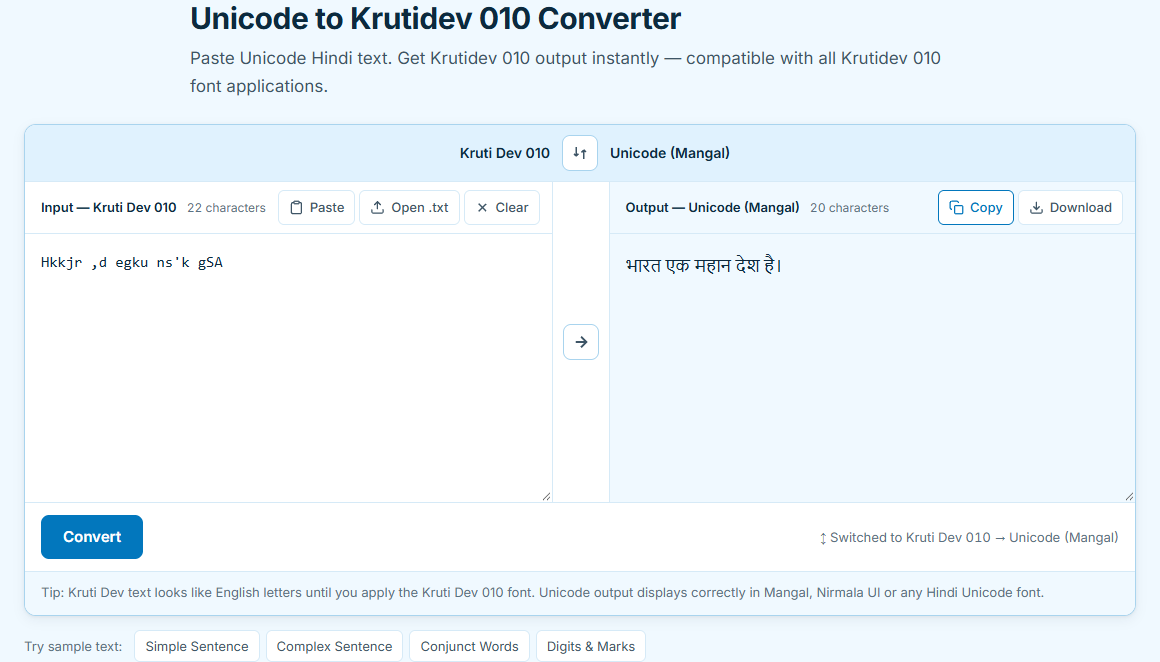
Do not run the resulting legacy text through the Unicode-to-Kruti-Dev direction a second time. If you want a comparison, use the reverse direction on a copy. Keep both versions available so that you can distinguish an error already present in the source from a problem introduced during pasting.
4. Copy into the destination and apply Kruti Dev 010
Use Copy and paste into a new paragraph in your document. Select only the converted Hindi text and apply the installed Kruti Dev 010 font. A plain-text download preserves characters, but it does not install a font or store Word paragraph styles. The receiving computer also needs the appropriate font to display the legacy text.
5. Compare difficult words in their full context
Check the first and last lines, names, dates, punctuation and paragraph boundaries. Enlarge the destination text to inspect small marks. A missing nukta or displaced matra may be easy to overlook at a normal reading size, especially in a dense table. Compare complete words instead of checking isolated characters alone.
6. Save an editable copy and inspect the final export
Save the legacy document under a distinct filename. If you also deliver a PDF, reopen the exported PDF and inspect the same difficult words. Exporting can expose font substitution that was not visible on your own editing screen. Keep the Unicode master and a brief note identifying the target font so the next editor knows how the file was prepared.
Common character errors: before and after examples
The examples below show actual stored output from this site’s conversion engine. The right-hand code is not intended to look like Hindi in a normal web font. Read it in Kruti Dev 010, then compare the resulting word with the Unicode source.
| Character to check | Unicode before conversion | Kruti Dev output | What to inspect after applying the font |
|---|---|---|---|
| Short-i matra | कि | fd |
The vowel sign belongs to क; do not manually type it after the legacy consonant. |
| Reph | कर्म | deZ |
र् must appear over the correct syllable, rather than as a separate र. |
| Nukta | ज़ | t+ |
The dot must remain under ज. |
| Conjunct | ज्ञ | K |
Preserve the complete conjunct. |
| Conjunct | क्ष | {k |
Keep both stored characters together. |
| Conjunct | त्र | = |
Do not replace the equals sign just because it resembles punctuation. |
Unicode stores the short-i sign after the consonant cluster, although it is drawn to the left. A legacy encoding needs a different order. For the same reason, reph requires more than a direct letter-for-letter substitution. Moving a matra by eye inside the encoded output may repair one appearance while breaking the underlying sequence.
Half-letters also need attention. A consonant followed by the halant can form a half shape or a combined glyph with the next consonant. Some combinations use an explicit halant rather than a dedicated half-letter glyph. Do not delete that marker simply because your chosen font displays a visible joining mark. Check the intended spelling first, then the font’s rendering.
Nukta letters can arrive as one Unicode code point or as a base consonant plus a dot. This converter normalizes Unicode before mapping it, so visually equivalent input forms can produce the same output. That does not remove the need to compare names: ज़ and ज are different spelling choices. For more symptom-by-symptom help, use the Hindi font conversion errors guide.
Why the output looks garbled
Latin letters throughout: first check the font applied to the pasted selection. Hkkjr in Arial is expected; the same stored characters need Kruti Dev 010 for Hindi display. Applying Mangal to that legacy output will not turn it back into Unicode.
Hindi shapes, but the words make no sense: check the conversion direction and the source font. Unicode passed through a legacy decoder, or text from another legacy font interpreted as Kruti Dev, can produce plausible-looking but incorrect letters. Return to the original instead of repeatedly converting the damaged result.
Only a few marks are wrong: compare the original for OCR errors, unintended spaces and altered punctuation. Word’s automatic smart quotes can change stored keys used for श and ष. Work on a copy, turn off the relevant automatic replacement for the legacy text, and paste a fresh result. Never perform an unrestricted punctuation replacement across the entire document.
Boxes or missing glyphs: verify that the intended font is actually installed and selected. A font name in an old document does not prove that the receiving computer has it. If the same text differs between two machines, compare their font files and export settings before assuming the conversion table is at fault.
Microsoft Word, Excel and PageMaker handoff tips
Microsoft Word
Paste into a clean paragraph and apply Kruti Dev 010 to that text selection. Preserve headings, English abbreviations and numeric fields as separate formatting runs when necessary. Keep a Unicode master for searching and future revisions. After saving and reopening, check whether Word retained the intended font and whether automatic formatting altered quotes or list markers.
Microsoft Excel
Convert text values separately from formulas and numeric cells. If you need to preserve a code with a leading zero, format the destination as text before pasting. Do not convert a whole worksheet indiscriminately: applying a legacy font to an English formula result or label can change its visible meaning. Test one row, compare the cell boundaries and then repeat the workflow in manageable batches.
PageMaker and older DTP templates
Ask the print operator for the font used in the template and a short proof sample. Paste the converted passage into a copy of the layout, apply that exact font, and inspect line endings and text overflow. Font metrics affect pagination, so a correct character conversion does not guarantee identical line breaks. Keep the Unicode text outside the layout as your editable source, and approve a proof from the actual export or printing workflow.
These checks separate three different problems: source spelling, stored encoding and final font rendering. Resolve them in that order. When the passage passes the short trial, repeat the same process for the remaining sections without overwriting your original.
Frequently asked questions
Is changing Mangal to Kruti Dev in the font menu enough?
No. Mangal displays Unicode characters, while Kruti Dev 010 expects different stored characters. Convert the text first, paste the converted result, then apply Kruti Dev 010. Keep the original Unicode document for later editing.
Why does my converted text contain Latin letters and punctuation?
That is the stored Kruti Dev representation. For example, भारत becomes Hkkjr. It displays as Hindi only when a compatible Kruti Dev 010 font is applied. The browser output deliberately lets you inspect the underlying characters.
Can I convert an entire Word file or scanned PDF here?
This tool converts pasted text and plain-text .txt files, not document formatting or scanned images. Extract selectable text first. Scans need OCR and proofreading before conversion; tables, page breaks and styles must be rebuilt in the destination application.
Does conversion prepare me for a Hindi typing test?
It can prepare practice passages, but it does not teach the keyboard layout or replace timed practice. Check the current official exam instructions for the required language, font, keyboard and software. Do not assume every Hindi typing test uses Kruti Dev 010.
Can I keep English words and numbers in the same document?
Yes, but keep English words in a separate font run such as Arial. Applying Kruti Dev to Latin letters changes their appearance. Check numeric fields separately and preserve identifiers, dates and leading zeros exactly as required by the document.
How do I check whether the conversion is correct?
Inspect the pasted text in the actual destination font, compare names and numbers with the Unicode original, and reverse-convert a copy as an additional check. A successful round trip does not prove that the receiving font draws every conjunct correctly.