How to Convert Kruti Dev to Unicode (Word, Excel and .txt Files)
Step-by-step guide to converting Kruti Dev 010 Hindi text to Unicode for Word, Excel and plain-text files, with checks to catch conversion errors.
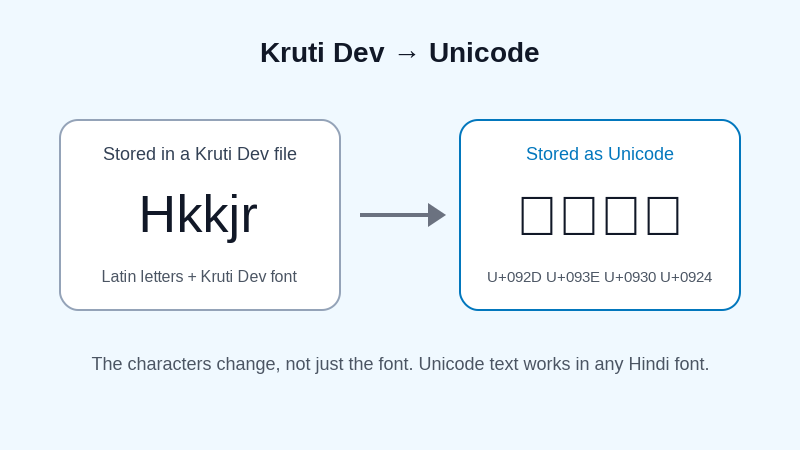
Old Hindi documents typed in Kruti Dev 010 look fine on the computer that made them. Send them to anyone else, upload them to a portal or paste them into WhatsApp, and they turn into lines like Hkkjr ,d egku ns'k gSA.
Converting the text to Unicode fixes this for good. This guide shows how to do it for Word documents, Excel sheets and plain-text files, and how to check the result.
Before You Start: Is the Text Really Kruti Dev?
Select a Hindi word and change its font to Arial.
- If it turns into English letters and symbols, it is a legacy font. If the document used Kruti Dev, carry on.
- If it stays Hindi, the text is already Unicode. You do not need to convert it; just choose a Unicode font such as Mangal.
If the letters look like Hindi but wrong after conversion, the file may use a different legacy font (DevLys, Chanakya, Shree-Lipi). Those use other layouts and need a converter made for them.
Method 1: Copy and Paste (Any Program)
- Open the Kruti Dev to Unicode converter. It opens in the Kruti Dev → Unicode direction.
- Copy the Kruti Dev text from your document and paste it into the left box.
- The Unicode text appears on the right as you type. Press Copy.
- Paste it where you need it and set a Unicode font (Mangal, Nirmala UI, Kokila or Noto Sans Devanagari).
This works for Word, PageMaker, CorelDRAW, email and web forms.
Method 2: Microsoft Word Documents
Word documents need two extra precautions.
Keep English out of the selection. Kruti Dev documents often mix Hindi (in Kruti Dev) with English (in Arial or Times New Roman). The converter cannot tell them apart, so English words would be turned into Hindi letters. Select and convert the Hindi parts only.
Paste as plain text. After copying the Unicode result, paste it with Paste Options → Keep Text Only. A normal paste can carry the old Kruti Dev font formatting along, and the text would look like English letters again.
Formatting such as bold, tables and headers is not carried through the converter. For tables, convert column by column or cell by cell; for long reports, convert one section at a time.
Watch out for smart quotes. In Kruti Dev, the ' key is श् and " is ष्. Word’s AutoFormat As You Type → smart quotes option replaces them with curly quotes while you type. The converter treats curly quotes in Kruti Dev text as ' and " and shows a notice, but proofread words with श and ष.
Method 3: Excel Sheets
Copy a column of Kruti Dev cells and paste it into the converter. Each cell arrives on its own line. Copy the Unicode result and paste it back into the first cell of the same column; Excel spreads the lines over the rows again.
Check that the row count matches before you delete the old column. Cells that contain line breaks of their own can shift the rows.
Method 4: Plain-Text (.txt) Files
Press Open .txt above the left box and choose the file (up to 2 MB). Kruti Dev text files saved by older Windows programs are usually in the “ANSI” (Windows-1252) encoding; the converter detects this and reads them correctly.
Download saves the Unicode result as a UTF-8 text file, which Notepad and Word open without asking about the encoding.
How to Check the Result
Automatic conversion is reliable for ordinary Hindi, but always spot-check:
- Words with र् (reph), such as कार्य and धर्म. The reph should sit on the right letter.
- Words with ि after a conjunct, such as स्थिति and स्त्री.
- Conjuncts such as क्ष, त्र, ज्ञ, द्ध, द्य and ह्म.
- Numbers. Kruti Dev documents may use Devanagari digits (१२३) or English digits (123). Both are converted, but they stay the kind they were.
If something looks wrong, our guide to fixing Hindi font conversion errors explains the usual causes.
Converting Back Later
If an office still needs a Kruti Dev copy, keep the Unicode file as your master and convert a copy with the Unicode to Krutidev converter. Unicode is the safer long-term format: it is searchable, works on phones and does not depend on one font.